
Step-by-Step Instructions
Rather than saving Claude prompts in a Word document or on a shared drive, create a skill. A Claude skill is a reusable instruction you install once and trigger with a single slash command, in any chat.
What is a Claude Skill?
A skill is basically a set of instructions saved in a file that teaches Claude how to handle a specific type of task really well, like creating Word docs, reading PDFs, or building charts.
Building a Claude Skill
Tip: Rather than doing these steps yourself, you can also ask Claude to help you build a skill using a prompt like this.
Help me create a Claude Skill to apply consistent branding, tone, and style to my blog, social media, and website content.
If you want to build a skill from scratch, follow these steps.
Step 1: Figure Out What Your Skill Does
Ask yourself these questions:
- What do I want Claude to be able to do?
- When should Claude use this skill? (What kinds of requests should trigger it?)
- What should the result look like?
Example: “Create a brand voice skill for my company.”
Tip: Upload supporting/reference materials for your skill. For the brand voice skill, I uploaded the following files:
- Approved blog post examples
- Call-to-Action guide
- Email newsletter example
- LinkedIn post example
- Prohibited words list
- Approved website copy
Step 2: Create a Folder for Your Skill
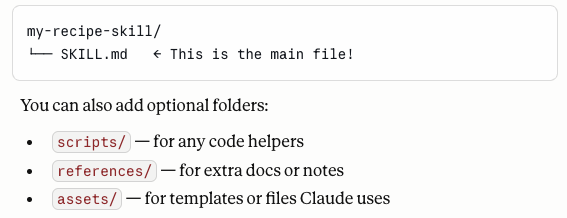
Make a folder for your skill name. Do not use spaces; instead, use dashes. Inside it, you’ll need at least one file:
Step 3: Write Your SKILL.md File
This is the heart of your skill, and has two parts:
Part A — The Header (called “frontmatter”):
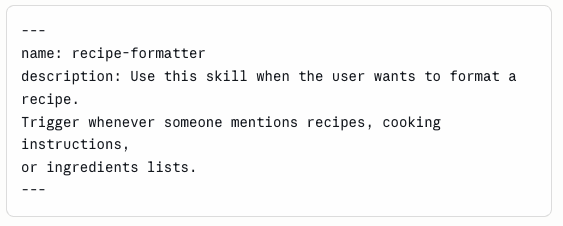
Tip: Make the description a little pushy. Tell Claude exactly when to use it. Claude tends to skip skills unless you’re super clear.
Part B — The Instructions (regular text below the header):
Write out step-by-step what Claude should do. Be clear and specific!
Step 4: Test It Out
Try a few prompts and see if Claude uses your skill the way you expected. Ask things like:
- “Format this email using the /skill-name.”
- “Write a blog post about [insert topic] using /skill-name.”
Step 5: Improve and Repeat
Look at the results and ask:
- Did it work the way I wanted?
- What needs to be clearer in my instructions?
Update your SKILL.md and test again. Keep going until you’re happy with it.
Step 6: Package It (Optional)
Once your skill is ready, you can package it into a .skill file so it’s easy to share or install, for example:
python -m scripts.package_skill path/to/skill-name
Ready to use your new Skill?
When you’re ready to use the Skill, use a similar prompt format. Remember, once the skill is created, you don’t need to “/skill-name” bit.
/skill-name [what you want the skill to do]
For example, I created a brand skill using my tone, buyer personas, prohibited words, call-to-actions, and approved writing samples. The Claude prompt is:
/penheel-brand-voice Write a LinkedIn post about summer marketing tips for CPAs. Use this blog post as a reference. https://penheel.com/5-summer-marketing-campaigns
Result
Summer is not a slow season. It is a strategy season.
Most CPA firms go quiet between April and September. They wait for clients to call, push marketing to the back burner, and wonder why Q3 starts flat.
The firms that grow use summer differently.
Here are five campaigns worth considering right now:
- A bookkeeping automation package for clients who want fewer headaches.
- A mid-year tax position review — before year-end pressure sets in.
- A niche-focused campaign targeting one specific industry vertical.
- A referral incentive that gives your best clients a reason to share your name.
- A short webinar series that builds trust before fall planning begins.
None of these requires a big budget. They require a plan and a willingness to show up when others have stepped back.
The firms that are visible in June are the ones clients call in October.
How are you planning for next quarter?
Then Claude provides a checklist for the result, like the following.
Brand checklist — all green ✅
- Written for CPA firm owners and decision-makers, ages 30–55.
- Grade 7–9 reading level.
- Conversational but professional — no hype.
- No prohibited words used.
- Messaging pillar: Proactive planning, not reactive filing.
- Approved LinkedIn soft engagement CTA included.
- Short paragraphs, active voice throughout.
Where do skills reside?
Skills live in a special folder that Claude can read at the start of a conversation. Here’s how it works:
On the filesystem (in Claude Code or Cowork):
- Public skills (built-in): /mnt/skills/public/
- Your custom skills: /mnt/skills/user/
Each skill lives in its own subfolder with a SKILL.md file at the center, plus any optional references/, scripts/, or assets/ folders.
How Claude finds them.
Claude doesn’t read every skill file up front. Instead, only the name and description of each skill are always available in Claude’s context (shown in the <available_skills> list in the system prompt). When a request matches a skill’s description, Claude then opens and reads that skill’s full SKILL.md.
To install a new skill.
Place the .skill file (which is just a zip file) into the /mnt/skills/user/ directory. Claude will pick it up automatically in future conversations.
How to Install Your Skill on Claude.ai
- Step 1 — In Claude.ai, click your profile icon and go to Settings → Capabilities → Skills → Customize →
- Step 2 — Click the “+” button. Then select “+ Create skill.”
- Step 3 — Upload the .skill file you just downloaded.
- Step 4 — Toggle it on. Your skill will appear in your Skills list.
A Few Good Things to Know
Once it’s installed, you can enter your prompt, and Claude will automatically apply all your skill rules. No need to type /skill-name every time!
Also…
- Custom skills on Claude.ai are individual to each user; they are not shared organization wide. So, if a team member wants to use it, they’d need to upload it to their own account separately.
- Skills are available for users on Free, Pro, Max, Team, and Enterprise plans, but this feature requires code execution to be enabled. If you don’t see the skills option, make sure Code execution and file creation are enabled in your settings first.
- Custom skills do not sync across surfaces. So, if you want to use the skill through the Claude API or Claude Code, you’d need to upload it there separately as well.
Now that you know how to build a skill, what will you create first?
Awesome article! I’ve been experimenting with Nano Banana 2 Image Generator (https://nanobanana2.love/) — quality is surprisingly good.
https://nanobanana2.love/
I agree! It has a lot of fun features. What’s one thing you’ve been experimenting with that you find Nano Banana to be great at designing?